This is blog provides information about teaching and technology, CAD / CAE / CFD. In addition we also provide 2D/3D & Analysis drawings into your computer using CAD-CAE-CFD. Email :mycadcaexs@gmail.com or mycadnik@yahoo.com Facebook : www.facebook.com/mycadnik.draftingdesign Appropriate to :CAD designer, Draftsman, Design engineer, CAE-CFD Engineer. (FREELANCE)
Thursday, October 9, 2014
Saturday, August 16, 2014
Solid Edge ST7 Launch "Reimagine what's possible" Seminar
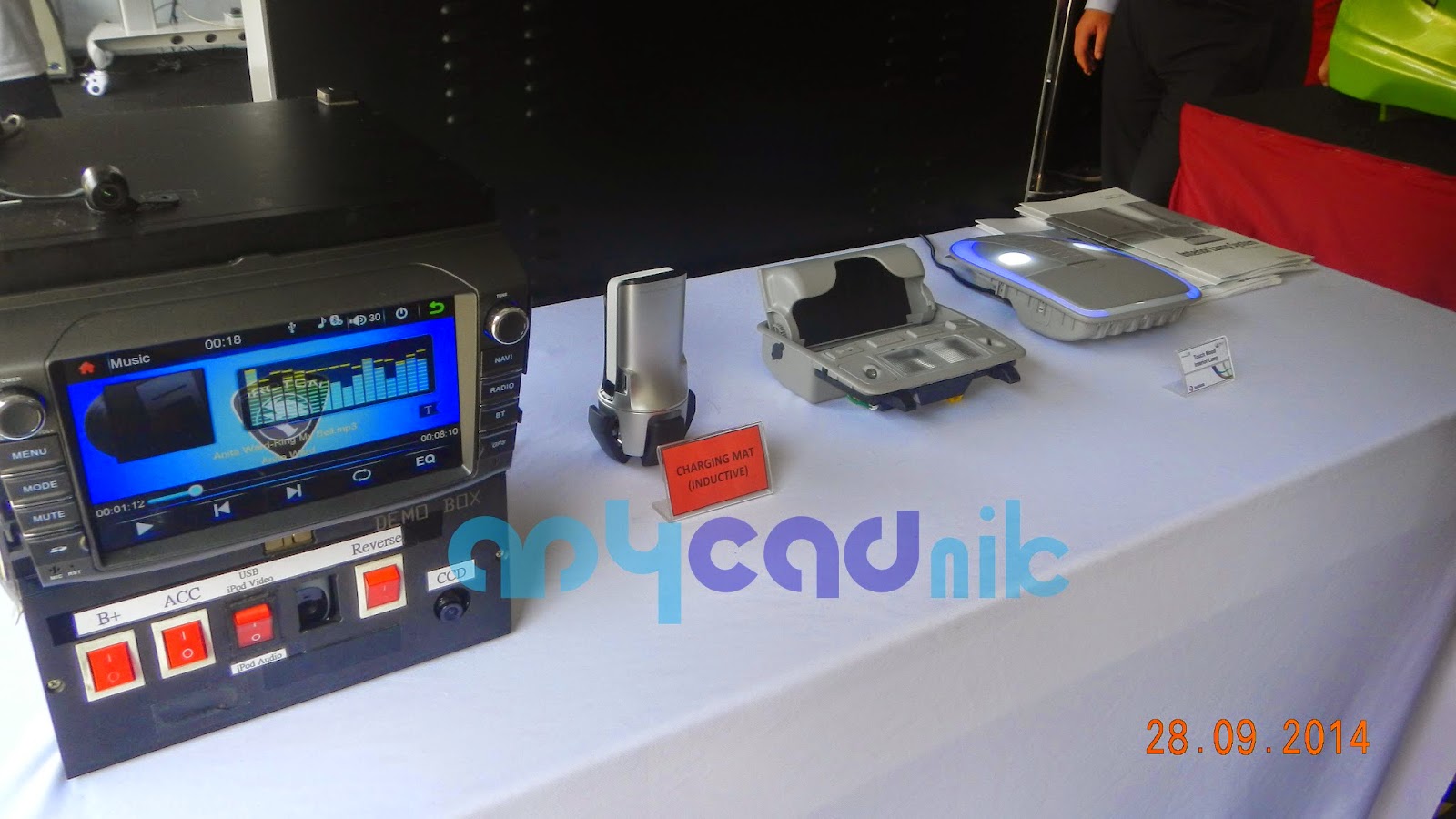
Picture Solid Edge ST7 Launch "Reimagine what's possible" Seminar --13 Aug 2014 , Hotel Sunway Spa MALAYSIA---#Sunway Hitachi Technology Sdn Bhd ---from MyCADnik
Waiting to Seminar
Test the fast use Solidedge
Side view Waterpark at Sunway Lagoon
Source MyCADnik Drafting-Design-Analysis
Tuesday, July 22, 2014
Turn Legacy 2D Data into 3D Models - Alibre Design Tips
Put
old 2D drawings to use by importing them into Alibre Design and copying
components into the 3D workspace to make 3D parts.
Alibre Design enables you to use 2D data (for example, your legacy data from an older 2D program) as the basis for generating 3D models. The basic process is simple -- import your 2D drawings into Alibre Design and then copy components of the drawing, such as lines and points, into the 3D workspace as the sketch you'll use for feature creation. This column will walk you through this process while giving you hints about transforming your drawings from other programs into 3D models in Alibre Design.
Importing a DXF or DWG
1. Go to File / Import and find the DXF or DWG file that you wish to use.
|
DXF/DWG import options. |
2. Choose your import options.
Maintain Projection means that it will maintain the orientation that the file was created with. Import Only Visible Layers means that Alibre will import only those layers that were set visible when the file was initially saved.
3. Activate the sketch on the sheet
to enable the selection of the sketch figures. Do this by right-clicking in
open space and selecting Activate Sketch on Sheet.
4. Select the figures that you want
to use to create your model. The figures you select will typically be profiles
that are representative cross sections of the part. In the example model, which
would make use of a Revolve Boss feature in a 3D workspace, I'll need to find
the component of the drawing that represents the profile I'm after. In this
case, it's the set of lines shown below in light blue. You can see how if you
revolve this profile around main centerline, the main 3D solid would be
created. Copy these sketch figures by selecting Edit / Copy from the menu bar
after you select them.
5. After copying the sketch figures,
open a new Part workspace and create a new sketch. Go to Edit / Paste to paste
the figures you copied earlier into the new sketch.
6. Depending on where the figures
you copied were in relation to the 2D drawing, the figures might get pasted
away from the origin. Use the Sketch Move tool to move your sketch to the
proper orientation for the feature you are going to use. Access the Sketch Move
tool by selecting Sketch / Move from the menu bar. Below you can see I've moved
the sketch from its initial location to one to the left of the origin.
To use to the Sketch Move tool you
will need to:
- Select the Figures icon. Select the figures that you want to move.
- Select the From icon. Select a node on the sketch figures where you want the orientation of the move to be from.
- Select the To icon. Select the new orientation where you want the sketch to be placed.
- Select Apply to apply the move.
7. Now that the new sketch is
located where I want it, I need to run the Analyze Sketch tool to locate any
potential problems with the sketch (for example, overlapping figures). Select
the Analyze Sketch tool from the Sketch / Analyze menu bar.
Note: In addition to finding errors, Alibre Design will show you
where in the sketch they are located. Just click on any errors that may pop up
after clicking Analyze. Some errors allow you to use the Heal option to fix
them automatically.
8. Now that I've got the sketch
located and error-free, I can use it just like any other profile as the basis
for a 3D feature. You can dimension it, constraint it, and then turn it into a
solid. I'll use the Revolve Boss feature on the profile to get the solid below.
I can now go in and add some of the final details, such as holes and chamfers,
to finish out the part.
Using your existing 2D data to
generate 3D models is a straightforward process. The advantages of having your
data in 3D are numerous, including allowing you to generate different views of
your design in 2D drawings automatically, make changes parametrically, and show
customers 3D representations of your designs.
- Source cadalyst
Monday, July 7, 2014
Proton Design Competition 2014 – calling budding designers to come up with a Proton City Car for 2020
The contest, which runs from today, June 24 to August 11, 2014, challenges participants to propose their creative vision of a future concept based on the given theme, using their favorite drawing tool – whether digital or pencil and paper.
Attractive prizes worth RM58,000 in total – ranging from cash rewards to a MacBook Air/Pro (complete with design software) plus cash for the top three finalists – are on the cards. The winner will also receive the Chairman’s Award, which is made up of a trophy and an internship at Proton’s R&D Creative Design Centre. The winning design is set to be built into a quarter-scale model and displayed at the Proton Gallery.
The automaker says it’s reaching out to local youths through the contest to raise awareness about the evolving reality of the automotive industry – “#PROTONCITYCAR2020″ is a creative platform aimed at motivating Malaysian youths towards the automobile segment and presenting their ideas on how future cars will shape up.
Here are the details on how you can enter the competition. The contest is divided into two categories – Category 1, for individuals within the ages of 13-17 and Category 2, for individuals within the ages of 18-25. Group entries are not allowed, and only Malaysians with a valid Malaysian identity card can take part.
All participants are required to design rendering sketches of an exterior outlook of the car on an A3-sized paper, inclusive of 3/4 front view, side view and rear view perspectives. For Category 2 participants, they are also required to design the interior outlook of the car.
Budding designers are no doubt busy working on their Proton Design Competition 2014 entries, envisioning their idea of what a Proton city car of 2020 should look like. Earlier in the week, we took a closer look at the automaker’s previous concepts.
There’s still more than a month to go before the closing of submissions – all entries have to be received by Proton by 11.59 pm, August 11, but apparently there have been questions fielded to the automaker by participants on how best to make their submissions and about usable formats.
All the details you need to know are outlined in the ‘Entry Format’ section of the Terms & Conditions part of the contest section on Proton’s Facebook page, but to make it easier for you, here’s an outline of the important points to remember:
- The contest is divided into two categories – Category 1, for individuals within the ages of 13-17 and Category 2, for individuals within the ages of 18-25.
- Please note that group entries are not allowed, and only Malaysians with a valid Malaysian identity card can take part.
- The vehicle must have a minimum of five passenger seats.
- All entries are required to feature renderings of an exterior outlook of the car – front 3/4 view, side view and rear 3/4 view. Category 2 (18-25 yr old) participants MUST also design an interior for their concept – be creative here.
- Renderings may be done using either digital media (CAD or graphics editing software such as Adobe Photoshop) or traditional media (pen, pencil, marker on paper).
- Traditional media renderings may be done on normal drawing paper, but MUST be sized in A3 (tabloid) sheet format, measuring within 270 mm to 300 mm by 420 mm to 450 mm.
- The rendering sketches MUST be coloured illustrations, using any artistic medium.
- The entries must NOT be sent pasted onto mounting board, or with binding.
- An entry must be of an original design relating to the theme of the competition, and not previously published work or a design that has been submitted for other competitions. The latter will result in disqualification.
- All entries MUST be accompanied by a design brief of the concept, on A4 paper (Arial font, 12 pt., 1.3” spacing) and must include:
- The name of the design
- Design concept (describe the idea behind the design)
- Unique selling proposition of the car (what are the unique elements)
- Propose the engine system of the car (how will it be powered?)- All competition forms, except for those submitted online, must be posted by ordinary mail, with stamp(s) amounting to value of RM 1 or more. Forms submitted with stamp(s) lesser than RM 1 value will be rejected.
- Forms which are incomplete, difficult to read or spoilt in one form or another will be rejected and will be treated as disqualified entries. Proton has the final say in determining the eligibility of the competition forms.
www.proton.com
https://www.facebook.com/ProtonCars/app_305548702944454
Friday, June 6, 2014
DRARFTERMAL ASSOCIATION (Persahabatan Bowling)
BOWLING
Pada 14.06.2014 (Sabtu)
Jam 5.00pm /
Tempat : 1 Utama PJ Selangor..
DRARFTERMAL ASSOCIATION akan mengadakan perlawanan persahabatan antara Zon KL vs Zon PJ.(bowling). Ini merupakan aktiviti yg pertama dlm Group ni.. Mohon pd semua sahabat2 yg ada dlm group ni dpt memberi sokongan padu tuk menjayakan aktiviti nih melalui sokongan moral samada ikut serta sebagai pemain atau sebagai penyokong..
Tujuan sebenar aktiviti ni dianjurkan lebih kpd sesi mengenali antara 1 sama lain yg mana cenderung kpd ikatan ukhwah sesama ahli dimana ianya adalah sesuatu kekuatan dlm mana2 pertubuhan..
"SUKAN MAMPU MENGERATKAN IKATAN PERSAHABATAN"
Penyertaan dibuka skrg... !
Jom rebut peluang ini...
Daftar ahli / rekod sahaja.
https://docs.google.com/.../1PLoHav8PqmtofsFX.../viewform...
Booking kad bisness :
https://docs.google.com/.../1lpJ-A9mFxHKNtZ.../viewform...
Tuesday, June 3, 2014
Daftar persatuan "DRAFTERMAL ASSOCIATION"
Makluman kepada pelukis pelan, kami dari "draftermal Association" yg berdaftar dari bawah persatuan (ROS) kerajaan msia. Kami mengajak Encik, Cik, Puan yang berumur 18 tahun ke atas untuk mendaftar secara rasmi dengan persatuan (khas kepada pelukis pelan / atau berkaitan dengan lukisan teknikal CAD).
Untuk keterangan lanjut boleh hubungi timbalan setiausaha email ke : nik-wan@draftermal.net
Isi Online / rekod tidak rasmi :
https://docs.google.com/forms/d/1PLoHav8PqmtofsFXO2W4EPXmPS1Ee1dIot-LBZsSQfI/viewform
Subscribe to:
Posts (Atom)